(Mac only) DMXIS not opening in Setlist

(Mac only) DMXIS not opening in Setlist

After installing the latest Show Buddy Setlist release on a Mac, the DMXIS window will not open.

DMXIS doesn’t natively support Macs with Apple Silicon. As a workaround, you can run run Show Buddy Setlist under Rosetta as follows:

  • Navigate the the Applications folder in Finder
  • Right click on the Show Buddy Setlist icon.
  • Select “Get Info” .
  • Enable “Open using Rosetta” and close the info window.
  • Restart Show Buddy Setlist. The DMXIS window should now open.

If you should switch to using Show Buddy Active instead of DMXIS in the future, remember to clear the “Open using Rosetta” flag to get all the performance benefits of your Apple Silicon machine.

How to control Setlist remotely

How to control Setlist remotely

How can I control Show Buddy Setlist remotely?

You can control Show Buddy Setlist at showtime using a simple wired USB footswitch. Any standard “page turner” footswitch which behaves like an external keyboard will work fine.

Alternatively, you can use a wireless MIDI footswitch like the AirTurn BT500S.

The View > Remote Control menu option lets you assign keys (i.e. buttons on the footswitch) to each command.

Replacing audio track with a revised mix

Replacing audio track with a revised mix

Question : How can I update one of my existing audio tracks with a new mix?

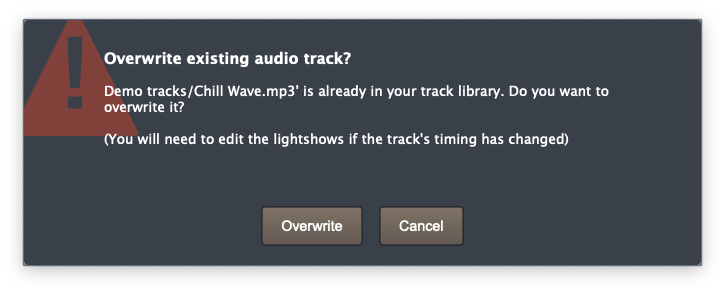
Answer : Just drag your revised audio file into the ‘Track Library’ panel of the main Show Buddy Setlist window. This will replace the existing file, and retain your exiating light show programming.

When you drag in a revised audio file, you should see this message:

Note that your revised file must have the same name and parent folder as the original (“Chill Wave.mp3” and “Demo tracks” in the above example).

How to move & copy groups of cues in Show Buddy Setlist

How to move & copy groups of cues in Show Buddy Setlist

Question: If I update a mix to add or remove a few bars, is it possible to select a whole region of lighting cues and move them around as a group?

Yes – just click & drag anywhere in the waveform (not on the cue labels or handles) to select a group of cues, then drag any highlighted cue to move that whole group.

You can also quickly copy groups of cues. Say you have a nice sequence of cues for the first chorus in a song. Select the group as above, then Ctrl-drag on any highlighted cue. This creates a copy of your chorus lighting. Drag the copy to chorus two in the song, and you’re done.

You can also copy/paste groups of cues between different songs. Just highlight the cues in your source song and click Ctrl-C. Then load the target song, position the playhead where you want to paste, and click Ctrl-V.

(Video) Show Buddy Setlist overview

An overview video showing all the Show Buddy Setlist features in action. Lightshow visualisation provided by Capture Sweden (not included with Show Buddy).

Note:  this video shows DMXIS (now unsupported) being used for the lighting control. Show Buddy Setlist is also compatible with our latest Show Buddy Active lighting controller.

What equipment do I need for the MIDI Output feature of Show Buddy Setlist?

What equipment do I need for the MIDI Output feature of Show Buddy Setlist?

The MIDI Out feature in Show Buddy Setlist is primarily intended for controlling hardware FX (like the Roland GT-10 or TC Helicon VoiceLive examples shown in the 1.1.0 release video).

For this, you (obviously) need some external equipment that can be controlled via MIDI commands. Some equipment supports MIDI directly via USB, so all you need to do is install the appropriate drivers and plug the equipment into a spare USB port.

In other cases, where the equipment does not support MIDI over USB, you will need a separate USB-MIDI interface for your computer. Your external equipment would then plug into the MIDI interface.

Show Buddy Setlist can also send MIDI to other programs running on the same computer, via a MIDI loopback driver (such as LoopBe on Windows or the standard IAC MIDI driver in macOS). This would let you, for example, synchronise video playback on a VJ program like Resolume with Show Buddy Setlist – assuming your computer is powerful enough to run both Show Buddy Setlist and the VJ program simultaneously.

Show Buddy Setlist Export to MIDI feature doesn’t work with simultaneous cues

Problem

You create a lightshow in Show Buddy Setlist which triggers multiple masked presets simultaneously, to build up full looks. When you export this lightshow to a MIDI file and import it into your MIDI sequencer, some of the simultaneous presets do not trigger correctly in the MIDI plugin.

Solution

Try increasing the “Minimum gap between cues” value in the Preferences window, and re-export your MIDI file.

Show Buddy Setlist can trigger multiple presets across multiple banks simultaneously without any problems. But this is not possible in the VST/AU plug-in, due to a limitation in MIDI – if the plugin receives 3 notes on ch 15 (bank changes) and 3 notes on ch 16 (preset changes) simultaneously, it has no way of telling which bank change belongs to which preset. Bank/preset changes in a MIDI track must be staggered by a few milliseconds to get round this problem.

The Show Buddy export function will stagger simultaneous bank/preset changes automatically for you, but you may need to play with the “Minimum gap between cues” value to find a reliable setting which works with your particular host & setup.

Backing up and restoring your Show Buddy Setlist data

Backing up and restoring your Show Buddy Setlist data

Show Buddy Setlist stores all your track, lightshow and show information in a single database file. As you create and edit your tracks & shows, Show Buddy Setlist automatically and silently saves your changes to the database – there is no File Open or Save option as is found in document based programs.

Your audio tracks (e.g. wav and mp3 files) are stored separately in the Show Buddy media folder.

You can create full backups of the above data from the File > Backup shows… menu option. This will archive the database and your audio tracks) into a single .sbb file. It’s a good idea to backup your database regularly while you are editing, and before each live gig (so you can always recover to a known point should something go wrong).

To restore from a backup, select the File > Restore from backup… menu option and choose a .ssb backup file (or a .dbb backup file from older releases of Show Buddy Setlist).

Manually backing up and restoring your show data

If you prefer you can manage backups manually, by copying and restoring the required files directly from Windows File Explorer or macOS Finder.

The Show Buddy database file is located here:

  • macOS : /Library/Application Support/db audioware/Show Buddy/ShowBuddy.db
  • Windows : C:/Program Files (x86)/db-audioware/Show Buddy Setlist/ShowBuddy.db

For the location of your audio files, look at File > Preferences > Media files location