(Mac only) DMXIS not opening in Setlist

(Mac only) DMXIS not opening in Setlist

After installing the latest Show Buddy Setlist release on a Mac, the DMXIS window will not open.

DMXIS doesn’t natively support Macs with Apple Silicon. As a workaround, you can run run Show Buddy Setlist under Rosetta as follows:

  • Navigate the the Applications folder in Finder
  • Right click on the Show Buddy Setlist icon.
  • Select “Get Info” .
  • Enable “Open using Rosetta” and close the info window.
  • Restart Show Buddy Setlist. The DMXIS window should now open.

If you should switch to using Show Buddy Active instead of DMXIS in the future, remember to clear the “Open using Rosetta” flag to get all the performance benefits of your Apple Silicon machine.

I’m using automation to control SBA faders. Why is the latency so high?

I’m using automation to control SBA faders. Why is the latency so high?

The Show Buddy Active window refreshes at a slow rate to minimise CPU load. But DMX data is always transmitted at full speed, with high priority and low latency.

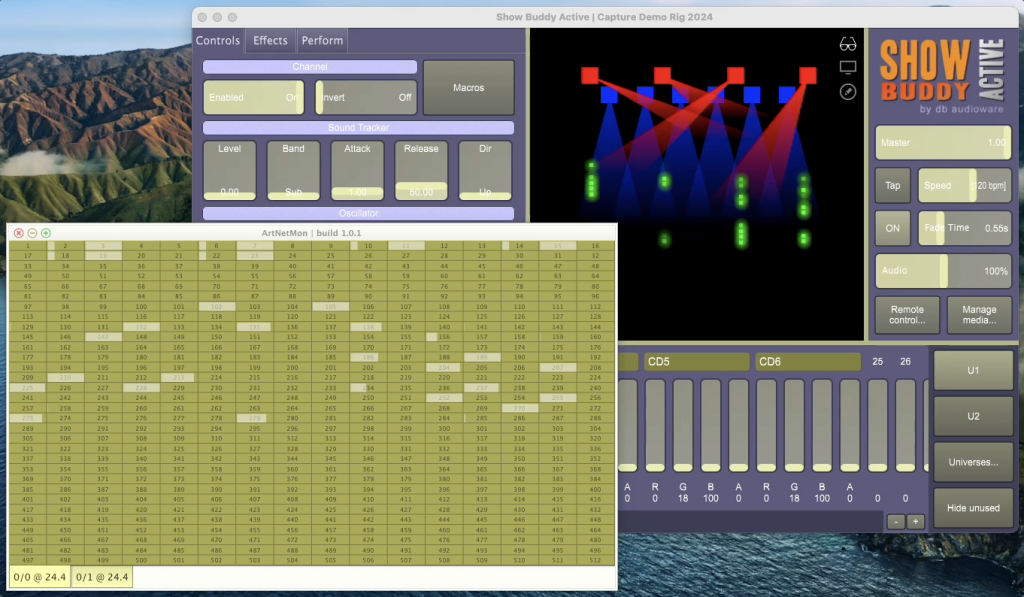
See this short demo on YouTube. Notice the labels under the SBA channel faders update slowly. But the ‘ArtNetMon’ app (displaying the DMX data stream from SBA) shows the data running reliably with low latency.

Why can I not import fixtures into Show Buddy Active?

Why can I not import fixtures into Show Buddy Active?

Problem – you downloaded a fixture from the online library, but when you try to import it into Show Buddy Active (from File > Manage fixtures) you get an error, or the file cannot be selected.

The Reason

Fixtures are downloaded as .zip files. and Show Buddy Active can only import these original .zip files.

If your computer automatically opens the .zip file, you’ll end up with a folder called “DmxLibrary” that contains one or more “.dmx” files. These cannot be imported directly.

Here’s how to prevent your browser from auto-extracting zip files.

macOS Users

On a Mac, Safari and the built-in Archive Utility may automatically unzip downloads.

Stop Safari from Unzipping Files

  1. Open Safari.
  2. From the menu bar, choose Safari > Settings (or Preferences).
  3. In the General tab, uncheck:
    “Open ‘safe’ files after downloading.”

Now downloaded zip files will stay zipped.

Stop Archive Utility from Removing Zip Files

  1. Open FinderApplicationsUtilitiesArchive Utility.
  2. In the top menu, select Archive Utility > Preferences.
  3. Under “After expanding”, choose “Leave archive file.”

Windows Users

On Windows, web browsers (Chrome, Edge, Firefox, etc.) normally do not unzip files automatically.

If your zip files are still being unpacked, it’s usually caused by another program on your computer, such as:

  • A download manager (e.g., Internet Download Manager, Free Download Manager)
  • An archiving tool (e.g., WinRAR, 7-Zip, PeaZip)
  • Antivirus or security software

What to Do

  • Open the program’s settings and look for options like:
    • “Auto extract archives after download”
    • “Unpack files automatically”
  • Turn those options off.
  • If you’re not sure which program is doing it, try temporarily disabling or uninstalling extra download tools, then test again.

Manual Workaround

If you prefer, you can manually copy the fixtures files as follows.

  1. Locate the .dmx files (in the DmxLibrary folder of the downloaded zip file)
  2. Copy the .dmx files into your Show Buddy Active fixture library:
    • Windows : C:/Users/Public/Public Documents//db-audioware/Show Buddy Active/DmxLibrary
    • Mac : /Library/Application Support/db audioware/Show Buddy Active/DmxLibrary

Show Buddy Active not transmitting Art-Net (macOS Sequoia or newer)

Show Buddy Active not transmitting Art-Net (macOS Sequoia or newer)

Problem: You have correctly configured Art-Net settings in Show Buddy Active, but no data is being received by your Art-Net hardware.

You have successfully used ArtNetMon to confirm that the software is transmitting Art-Net data locally.

Solution: macOS Sequoia may be blocking your Art-Net data. Go to System Settings > Privacy & Security > Local Network, and make sure ‘Show Buddy Active‘ is enabled.

Playing long videos in Show Buddy Active

Playing long videos in Show Buddy Active

Problem: you want a long video to run continuously for the entire duration of a song. But when you change presets, the video playback stops.

Explanation: When you load a preset, the Effects tab stops all FX layers currently playing – including your video that was triggered by the earlier preset.

The solution is to disable the Effects engine in all subsequent presets. Edit every other preset in the song, and disable the Effects engine via the “FX OFF” button:

Important note:

This technique has an important limitation. Since the FX engine is effectively tied up performing video playback for the duration of the song, you can no longer use the “Effects” tab to program your lights in the remaining presets. For those presets, you will need program your lights from the “Controls” tab (using faders and oscillators).

Presets are not loading and Effects tab is not working

Show Buddy Active : presets not loading and/or Effects tab is not working

Solution : Open File > Preferences > Audio/MIDI Settings and make sure a valid Input audio device is selected:

Explanation : Show Buddy Active uses the audio input as an accurate timing source, to manage crossfades and oscillators, and to process incoming MIDI data. If no input is active, then you will experience various issues with switching between presets and running effects within presets.

Using ArtNetMon to diagnose DMX problems

Using ArtNetMon to diagnose DMX problems

The free ArtNetMon utility displays DMX data transmitted by Show Buddy Active in realtime. This is really handy for checking that the values sent to your fixtures are correct – especially of you have a preset which is behaving strangely.

This also displays the data being sent to a USB interface box. It does not require you to use Art-Net to control your rig.

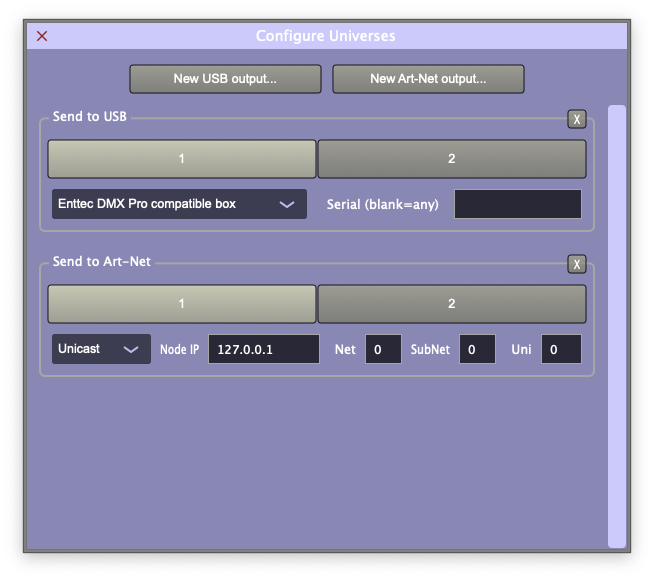
Just download and install the ArtNetMon utility onto the same computer you run Show Buddy Active from. Then click the “Universes…” button and add a new Art-Net output (Unicast to 127.0.0.1) as follows:

Now, run ArtNetMon, and it will display the DMX data being sent to your USB and/or Art-Net interfaces.

How to transmit to an Enttec Open DMX device

How to transmit to an Enttec Open DMX device

Show Buddy Active supports the Enttec Open DMX device (or any compatible 3rd party device).

  • Connect the Open DMX device to a free USB port
  • Click Universes…
  • Select Enttec Open DMX compatible box from the drop-down menu.

Then close the Configure Universes window, and Show Buddy Active will begin transmitting to the device.

Help! My Open DMX box is not working on my Mac

If Show Buddy Active appears to connect to your Open DMX box but does not transmit data, try installing the D2xxHelper utility from the official FTDI website.

If your Open DMX box still won’t respond, check that D2xxHelper is installed properly on your Mac as follows:

  • Open a Finder window
  • Select “Macintosh HD” from the left panel
  • Navigate to “Library > Extensions”
  • Make sure you can see “D2xxHelper.kext” in the Extensions folder…

Show Buddy Setlist Export to MIDI feature doesn’t work with simultaneous cues

Problem

You create a lightshow in Show Buddy Setlist which triggers multiple masked presets simultaneously, to build up full looks. When you export this lightshow to a MIDI file and import it into your MIDI sequencer, some of the simultaneous presets do not trigger correctly in the MIDI plugin.

Solution

Try increasing the “Minimum gap between cues” value in the Preferences window, and re-export your MIDI file.

Show Buddy Setlist can trigger multiple presets across multiple banks simultaneously without any problems. But this is not possible in the VST/AU plug-in, due to a limitation in MIDI – if the plugin receives 3 notes on ch 15 (bank changes) and 3 notes on ch 16 (preset changes) simultaneously, it has no way of telling which bank change belongs to which preset. Bank/preset changes in a MIDI track must be staggered by a few milliseconds to get round this problem.

The Show Buddy export function will stagger simultaneous bank/preset changes automatically for you, but you may need to play with the “Minimum gap between cues” value to find a reliable setting which works with your particular host & setup.

Lights not fading smoothly when using Show Buddy Active

Lights not fading smoothly when using Show Buddy Active

If your lights do not fade smoothly under Show Buddy Active control (and you are using a Windows computer) this may be caused by incorrect audio driver settings.

In the Show Buddy Active standalone, go to File > Settings > Audio/MIDI Settings and select an audio driver with a low latency, ideally less than 30ms.

If you get the problem with the Show Buddy Active plugin in an audio host, try reducing the audio buffer size in the host program to 40ms or lower.

Background: Show Buddy Active uses the incoming audio stream for synchronisation. If the audio is being passed to Show Buddy Active in very large buffers (i.e. if the audio latency is more than 40ms) this will slow down the DMX refresh rate, which in turn can cause flickering lights. It can also cause your audio to run out of sync with the lighting.