
Momentary (flash) buttons in Show Buddy Active
This feature is available in Show Buddy Active 2.4.0 or better.
Flash buttons can be added to the Perform tab button panel. When you press a flash button, the corresponding preset is activated. When you release the flash button, the preset stops.
Flash buttons are great for hands-on control of special effects likle crowd blinders, and for triggering specialised equipment like haze machines. Let’s look at a real example.
- You can download the following sample show here.
- Import the downloaded .sab file from [File > Restore from backup…]
- Then go to [Show > Manage Shows…] and load ‘Flash Button Demo’.
This show has six blinders, controlled by the bank “Flash – Blinders“:
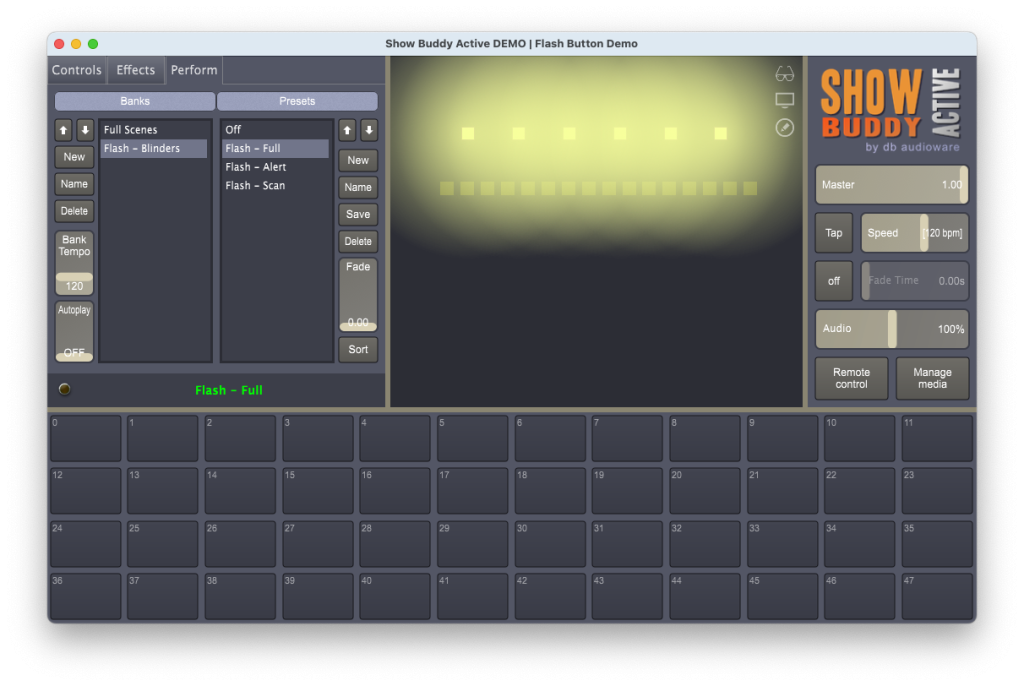
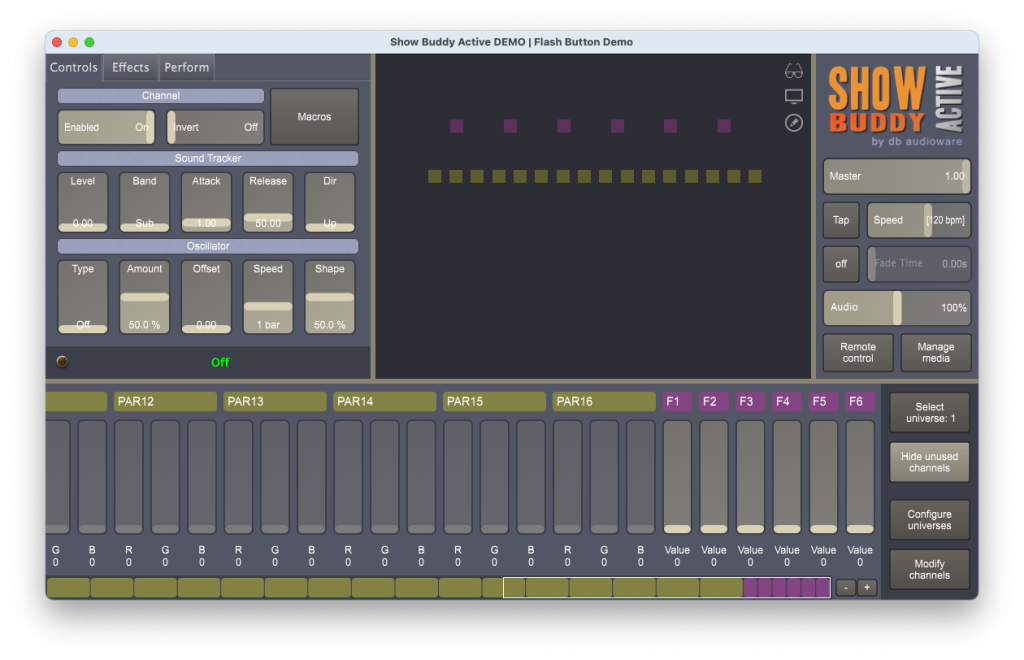
Notice the bank contains an ‘Off‘ preset. This switches the blinders off when a flash button is released. Also notice that all presets in the bank use channel masking to ensure that only the blinder channels are controlled:
Also, notice that we have disabled the Effects for every flash preset in the bank:
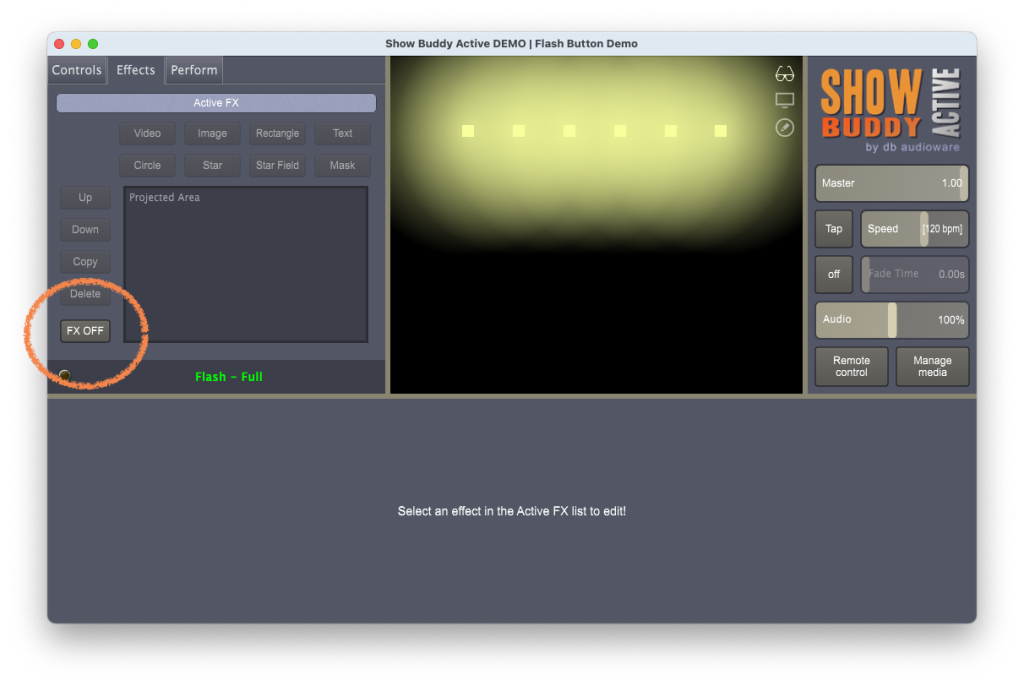
By using channel masking and disabling the Effects, we can now trigger flash effects without affecting any other fixture.
The ‘Full Scenes‘ bank contains normal fully-programmed presets. These regular presets don’t need channel masking, and can make use of the Effects tab.
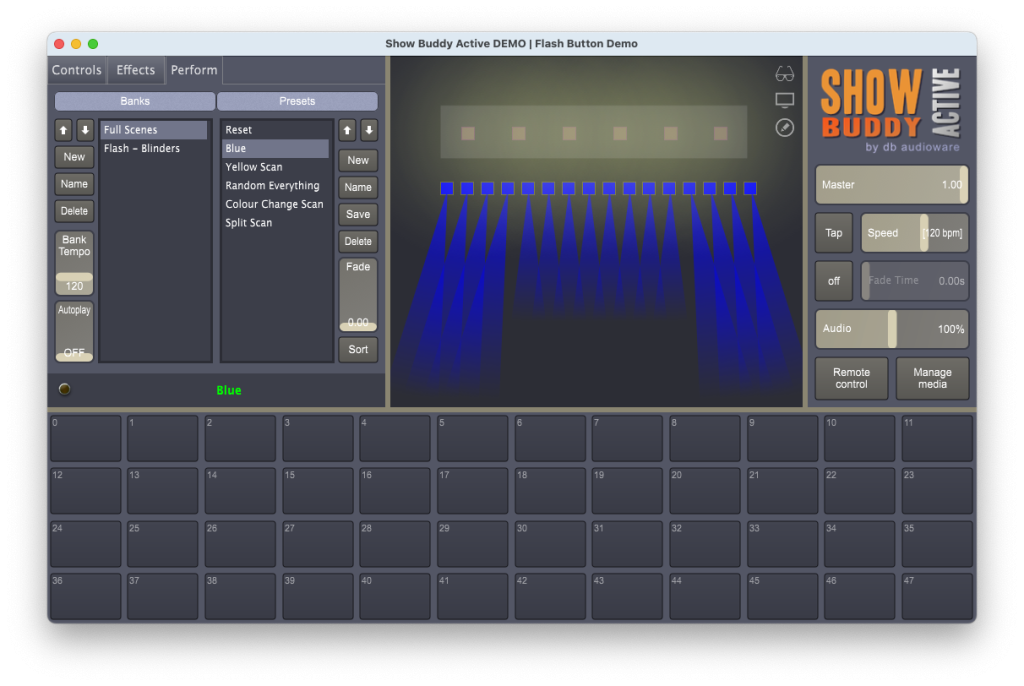
Now, we can simply drag presets from the “Flash – Blinders” bank onto the button panel, and we have our flash buttons! The following short video shows our flash buttons in action!
Triggering flash buttons from MIDI
You can trigger flash buttons from mouse/keyboard, but triggering then from a physical MIDI controller is far more tactile – and fun!
Just configure “Listen on MIDI channel‘ in the Preferences window. Then transmit MIDI notes on that channel to trigger the flash buttons. (The MIDI notes needed are shown in the top-left of the buttons)
Programming flash buttons from a DAW
Finally – with flash banks, you can program perfectly-timed flash patterns from your DAW. Just position and size your MIDI notes where you want the flash! The following short video shows this technique in Logic Pro…