(Mac only) DMXIS not opening in Setlist

(Mac only) DMXIS not opening in Setlist

After installing the latest Show Buddy Setlist release on a Mac, the DMXIS window will not open.

DMXIS doesn’t natively support Macs with Apple Silicon. As a workaround, you can run run Show Buddy Setlist under Rosetta as follows:

  • Navigate the the Applications folder in Finder
  • Right click on the Show Buddy Setlist icon.
  • Select “Get Info” .
  • Enable “Open using Rosetta” and close the info window.
  • Restart Show Buddy Setlist. The DMXIS window should now open.

If you should switch to using Show Buddy Active instead of DMXIS in the future, remember to clear the “Open using Rosetta” flag to get all the performance benefits of your Apple Silicon machine.

How to control Setlist remotely

How to control Setlist remotely

How can I control Show Buddy Setlist remotely?

You can control Show Buddy Setlist at showtime using a simple wired USB footswitch. Any standard “page turner” footswitch which behaves like an external keyboard will work fine.

Alternatively, you can use a wireless MIDI footswitch like the AirTurn BT500S.

The View > Remote Control menu option lets you assign keys (i.e. buttons on the footswitch) to each command.

I’m using automation to control SBA faders. Why is the latency so high?

I’m using automation to control SBA faders. Why is the latency so high?

The Show Buddy Active window refreshes at a slow rate to minimise CPU load. But DMX data is always transmitted at full speed, with high priority and low latency.

See this short demo on YouTube. Notice the labels under the SBA channel faders update slowly. But the ‘ArtNetMon’ app (displaying the DMX data stream from SBA) shows the data running reliably with low latency.

Can Show Buddy Active run with two external monitors?

Can Show Buddy Active run with two external monitors?

Yes, assuming your laptop supports two external screens. Just configure your monitor screen as a mirror, and your projector as an extended desktop. Then drag the SBA video window over to the projector. Both Windows and macOS support this monitor setup:

Long or short video clips in Show Buddy Active?

Long or short video clips in Show Buddy Active?

If you wish, you can create presets that only play long videos and do nothing with your lights. Then you can trigger videos and lighting independently as follows:

  • Make sure your video preset doesn’t control your lights by disabling the “Lights” option in the “Effects” tab
  • In all of your lighting presets, disable the “Effects” tab by changing “FX ON” to “FX OFF“. This will prevent your lighting presets from stopping the video
  • This of course means your lighting presets need to be designed entirely from the “Controls” tab

However, things get much more interesting if you add short video clips to your lighting presets like this:

We recommend you think of your projector as an extra intelligent fixture in your lighting rig, and think of each SBA preset as being a cohesive look, containing both DMX lighting and video content. This way, when you crossfade between SBA presets the video clips will automatically crossfade to match your lighting. When you move or copy presets on your timeline, your video content will instantly update to match. You will also be able to reuse full looks (with lighting and video content) across songs much more easily.

Some of the advanced SBA video techniques also work best with short clips. You can layer multiple clips and images into a single preset. For example, you could have an “Intro” preset which sets up your pre-show lighting, and plays a short video loop with your band logo layered on top. You can even animate video layers to match the tempo of the current audio.

Another fun technique to try out is pixelmapping – that is, sending video clips to both the projector and your DMX lights. This can make your entire DMX rig react in realtime to the video clip. Here are a couple of real examples:

Does the visualiser support fixtures with colour wheels?

Does the visualiser support fixtures with colour wheels?

Yes, so long as the colour wheel channel in your fixture file is defined as a colour channel with named ranges (and the fixture has no RGB channels).

The visualiser will recognise ranges containing these strings:

“black” or “off”
“red”
“green”
“blue”
“white”
“yell”
“pink”
“mag”
“cya”
“ora”
“purp”

For example, a range called” light purple” would be recognised as “purp”, and the visualiser would render it as purple.

Show Buddy Active hardware questions

Show Buddy Active hardware questions

What DMX hardware interface do I need?

Show Buddy Active can control one universe of DMX lighting via any Enttec PRO or Open DMX compatible hardware interface.

To control multiple universes, an Art-Net node is required.

We recommend using Art-Net if you intend to run professional shows. As a network based protocol, Art-Net takes a little more effort to configure compared to a USB interface, but offers better reliability. Simple Art-Net interfaces like the Chauvet DMX-AN2 give multiple universes of DMX output at a reasonable price point.

Enttec USB PRO compatible boxes are reliable and convenient. However, you are limited to only one universe of DMX output.

Open DMX interfaces (the original Enttec box, or a compatible 3rd party interface) are mainly designed for hobby applications. They are an affordable way to experiment with lighting, but don’t have the reliability & feature set of the more expensive PRO boxes.

How do I send video to a projector?

With a Show Buddy Active Projection license, you can play video as well as control DMX lighting.

This is easy to set up – simply connect your projector to your computer as recommended by the manufacturer. As most projectors tend to use HDMI or VGA connectors, you will often need to use a suitable adaptor cable (e.g. to connect to the USB-C port on your laptop).

Once connected, setup macOS or Windows to use your projector as an extended desktop. Then, click on the ‘monitor’ icon (top-right in the Show Buddy Active visualiser) to open the video window, and drag that window onto the projector section of the desktop. Finally, click anywhere in the window to make it full-screen.

I use a footswitch connected to the DMXIS box. Where did the footswitch settings go in the software?

Hardware support in Show Buddy Active has changed significantly, since the DMXIS interface box is no longer available to purchase. The footswitch socket of the old DMXIS hardware is no longer supported.

Show Buddy Active now supports a wider range of generic DMX interfaces (see above), and footswitch control is now via the new “Remote Control” button. You can use any generic PC USB foot pedal or a MIDI footswitch to remotely control Show Buddy Active.

Licensing questions

Licensing questions

How can I purchase Show Buddy Active/Setlist?

Show Buddy Active/Setlist licenses can be purchased in our online shop.

Is Show Buddy Active/Setlist a subscription service?

Absolutely not! Your initial purchase cost gives you a perpetual license to use Show Buddy Active/Setlist, with no ongoing subscription costs or upgrade fees.

Can I run my license on more than one computer?

Your Show Buddy Active/Setlist license is personal to you. You can install your license on multiple computers, if you are the main user, and only one computer will be in use at any time.

For example, say you run lighting for your band, and need to install your Show Buddy Active/Setlist license onto a home computer for programming, a laptop for running live gigs, and a backup laptop for emergency use. This is fine, as you are the main user of all 3 computers.

However, you could not then install your license on a computer at your church for other people to use. This would require a second license for the church.

Do I need an internet connection to use Show Buddy Active/Setlist?

You need an internet connection to initially unlock your license. Thereafter, no internet connection is needed and Show Buddy Active/Setlist is yours to run forever.

Show Buddy Active/Setlist never “phones home” to check your license details. Your license will never time out, or be disabled by any other means. If you are at a gig with no Internet access, your software will always run fine.

What happened to DMXIS?

What happened to DMXIS?

DMXIS hardware is no longer being manufactured, and the DMXIS software is out of support. We now recommend Show Buddy Active for DMX lighting control.

If you currently use DMXIS, you can switch to using Show Buddy Active and import your existing DMXIS banks & presets. Your blue DMXIS box will work with Show Buddy Active, although support has been discontinued for the footswitch socket.

Please note that a Show Buddy Active license is a separate purchase.

Need an unlock code for DMXIS?

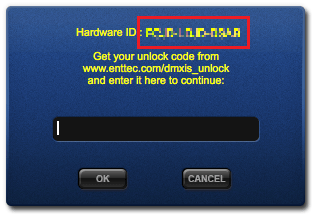
Until recently, it was still possible to request an unlock code for DMXIS via www.enttec.com/dmxis_unlock. That service is no longer available via the ENTTEC website.

The good news is, you can still unlock the software with your existing DMXIS unlock code. The same unlock code works on any computer.

If you would like a reminder of your unlock code, please send your Hardware ID to support@db-audioware.com. This is displayed by the software when you connect your box: