Do I need Show Buddy Active or Show Buddy Setlist?

Do I need Show Buddy Active or Show Buddy Setlist?

Show Buddy Active is a DMX lighting controller. You use it to program lighting “looks”, and switch between those looks manually at showtime (using a footswitch, MIDI controller, or computer mouse/keyboard). It comes with VST and AudioUnit plugin support, allowing you to automate your light show from a DAW.

Show Buddy Active can also play back video clips to a projector (with the optional ‘Projection’ license).

Show Buddy Setlist automates your shows. Think of it like a easy-to-use DAW, which can play your audio backing tracks, organise your songs into sets, display lyrics, and control your lighting & MIDI equipment for a fully synchronised hands-free show.

If you just want manual control of your lighting rig, or you want to add an automated light show controlled by your DAW, choose Show Buddy Active.

If you don’t use a DAW, but want a simple way to to pre-program your full show (leaving you free to perform while the software takes care of your audio & lighting) then choose both Show Buddy Setlist + Show Buddy Active.
How to Use Art-Net

How to Use Art-Net

What is Art-Net?

Art-Net is more complex to configure than a simple USB interface, but is a far more flexible way to get DMX data from Show Buddy Active to your lights.

With Art-Net, Show Buddy Active can transmit DMX data directly from the computer via a standard Ethernet network. In practice, this means you can control your lighting wirelessly. You can also control a larger number of universes and have more flexibility on how you design your lighting rig.

To get Art-Net data into your lights, you use hardware devices known as an Art-Net nodes. These can turn the ArtNet data into a DMX signal (which you then plug into your lights). Art-Net nodes are also available which wirelessly convert Art-Net data for strips of pixel tape. With Art-Net, you have much more flexibility in how you design and connect your lighting system.

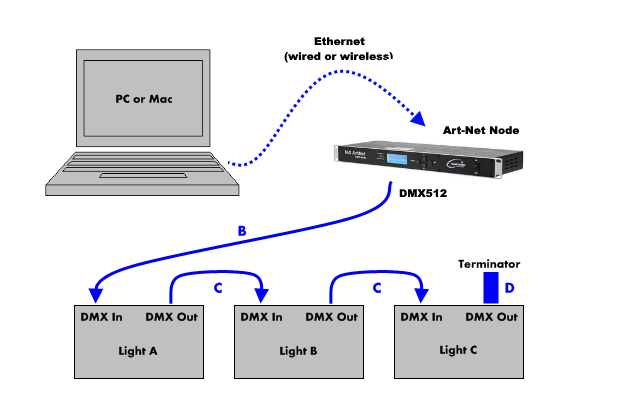
The following lighting rig uses an Art-Net node instead of a USB-to-DMX hardware box.

Using Art-Net in Show Buddy Active

To add Art-Net connections in Show Buddy Active, follow these steps:

  • Select “Configure universes” on the bottom right of the “Controls” tab
  • Click “New Art-Net output…
  • Select “Unicast” from the drop-down menu, and enter the IP address of your Art-Net node
  • Enable the universe numbers you wish to transmit to Art-Net

Recommended Art-Net nodes

There are many different Art-Net nodes available that would be suitable. Here are some that we recommend:

Show Buddy Active video features

Show Buddy Active video features

How do I send video from Show Buddy Active to my projector?

Connect and configure your projector as described in this article. Then, click the “monitor” icon (upper-right on the visualiser) to open the video window. Finally, drag the video window to your projector and click on it to make it full-screen.

How do I convert my video footage to use in Show Buddy?

Show Buddy Active can play back webm video files, encoded in VP8 or VP9 format. However, we highly recommend encoding videos using VP8, as it is more efficient than VP9 and less demanding on your CPU.

Also, encode videos at the lowest resolution you need to minimise CPU load. There’s no point in encoding a video at 4K, to then play it back on a 1024×768 projector.

We recommend the open source application HandBrake as the tool of choice for converting video footage.

Here is a standard HandBrake preset for converting videos for use in Show Buddy Active. To import this preset into HandBrake:

  • Extract the ZIP file
  • Open HandBrake
  • Select the “Preset” menu
  • Open “Options
  • Select “Import Preset(s) from file” and choose the extracted “.json” file